
Home Screen
Skrin Utama
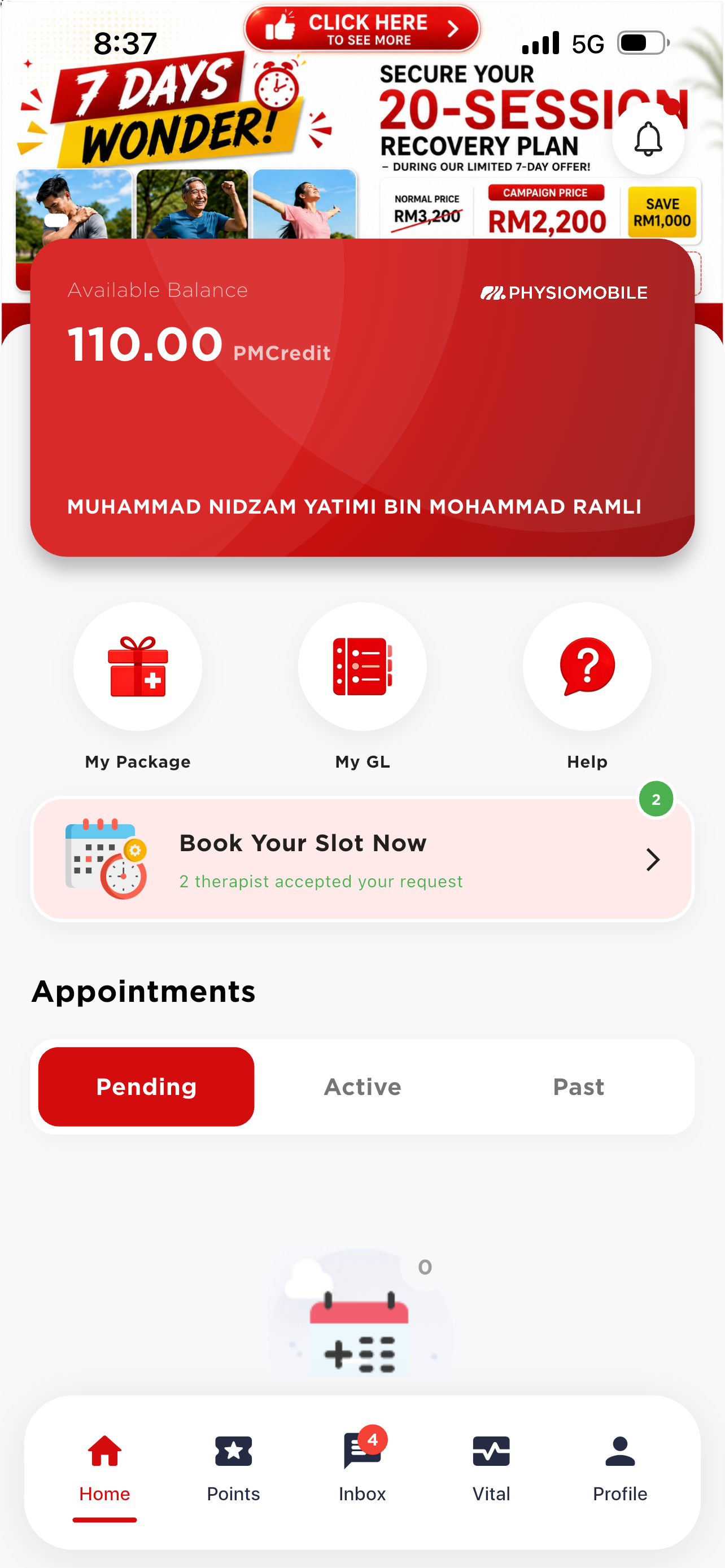
The Home screen is your dashboard. A rotating promo banner (e.g. limited-time package campaigns) sits at the top, with your red Available Balance card underneath showing your PMCredit and full name.
Skrin Home ialah papan pemuka anda. Banner promosi yang berubah-ubah (cth: kempen pakej tempoh terhad) dipaparkan di bahagian atas, diikuti kad merah Available Balance yang memaparkan baki PMCredit dan nama penuh anda.
Quick ActionsTindakan Pantas
My Package
Your active packages, session usage & purchases.
Pakej aktif, penggunaan sesi & pembelian.
My GL
Guarantee Letters for panel patients.
Guarantee Letter untuk pesakit panel.
Help
Opens Customer Support chat / a support ticket.
Buka chat Customer Support / tiket sokongan.
Appointments TabsTab Janji Temu
- Pending submitted, awaiting confirmation.dihantar, menunggu pengesahan.
- Active confirmed, upcoming sessions.disahkan, sesi akan datang.
- Past completed / cancelled history.sejarah selesai / dibatalkan.
Bottom NavigationNavigasi Bawah
| Home | Dashboard — balance, quick actions, appointments | Papan pemuka — baki, tindakan pantas, janji temu |
| Points | PMPoints balance & redemption | Baki & penebusan PMPoints |
| Inbox | Chat with CS / therapist, notifications (red badge = unread) | Chat dengan CS / terapis, notifikasi (lencana merah = belum baca) |
| Vital | Your recorded vital signs / health data | Rekod data vital / kesihatan anda |
| Profile | Account, dependants, medical records, settings | Akaun, tanggungan, rekod perubatan, tetapan |
PMCard & PMCredit
PMCard & PMCredit
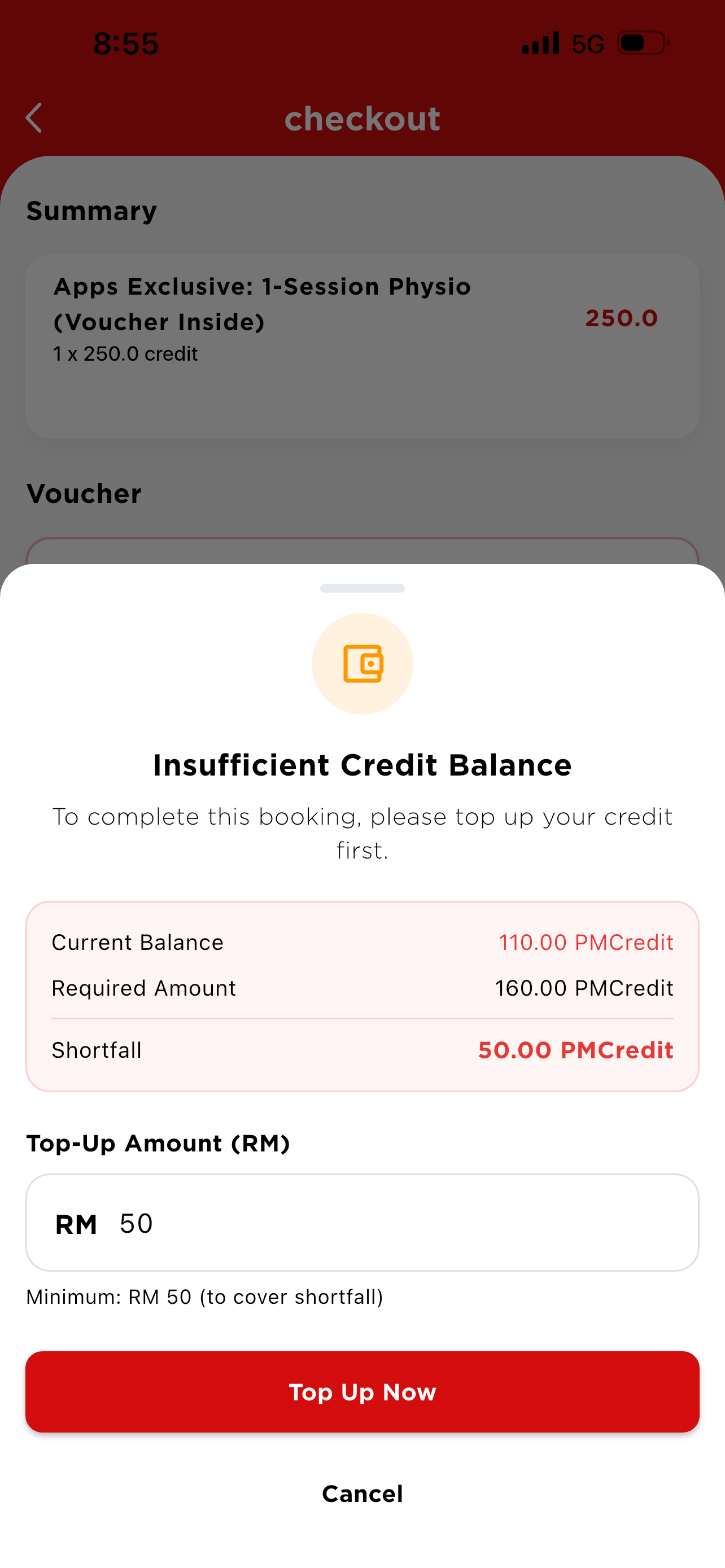
PMCard is Physiomobile's closed wallet. 1 PMCredit = RM1. Package purchases and bookings are paid with PMCredit.
PMCard ialah dompet tertutup Physiomobile. 1 PMCredit = RM1. Pembelian pakej dan tempahan dibayar menggunakan PMCredit.
The PMCard screenSkrin PMCard
Tap the balance card on Home to open PMCard. Here you can check your Available Balance, tap Top Up, and browse Transaction History (newest first) — e.g. Points Redeemed adds credit (shown in green/positive), while Package Purchase (Cart) deducts credit (shown in red/negative).
Tekan kad baki di Home untuk buka PMCard. Di sini anda boleh semak Available Balance, tekan Top Up, dan lihat Transaction History (terkini dahulu) — cth: Points Redeemed menambah kredit (hijau/positif), manakala Package Purchase (Cart) menolak kredit (merah/negatif).
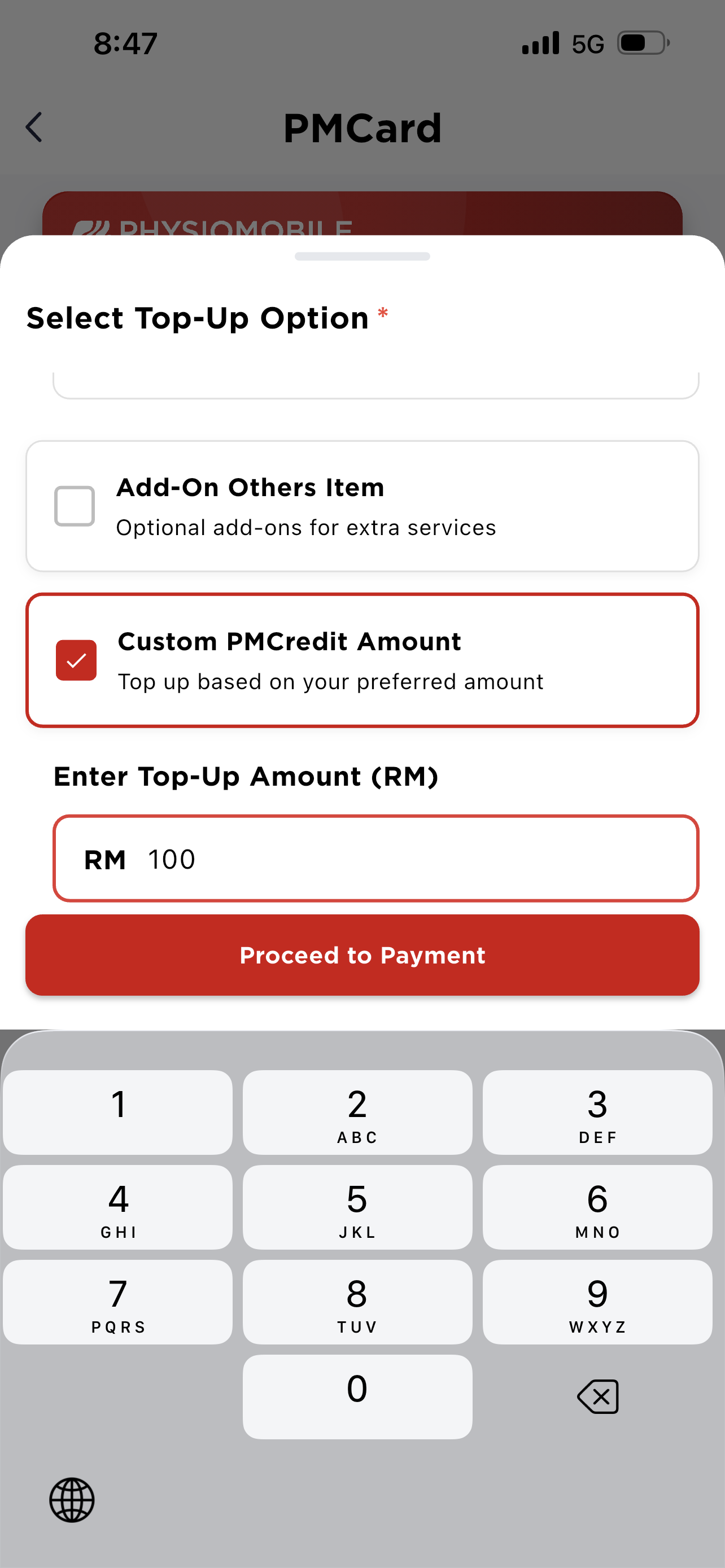
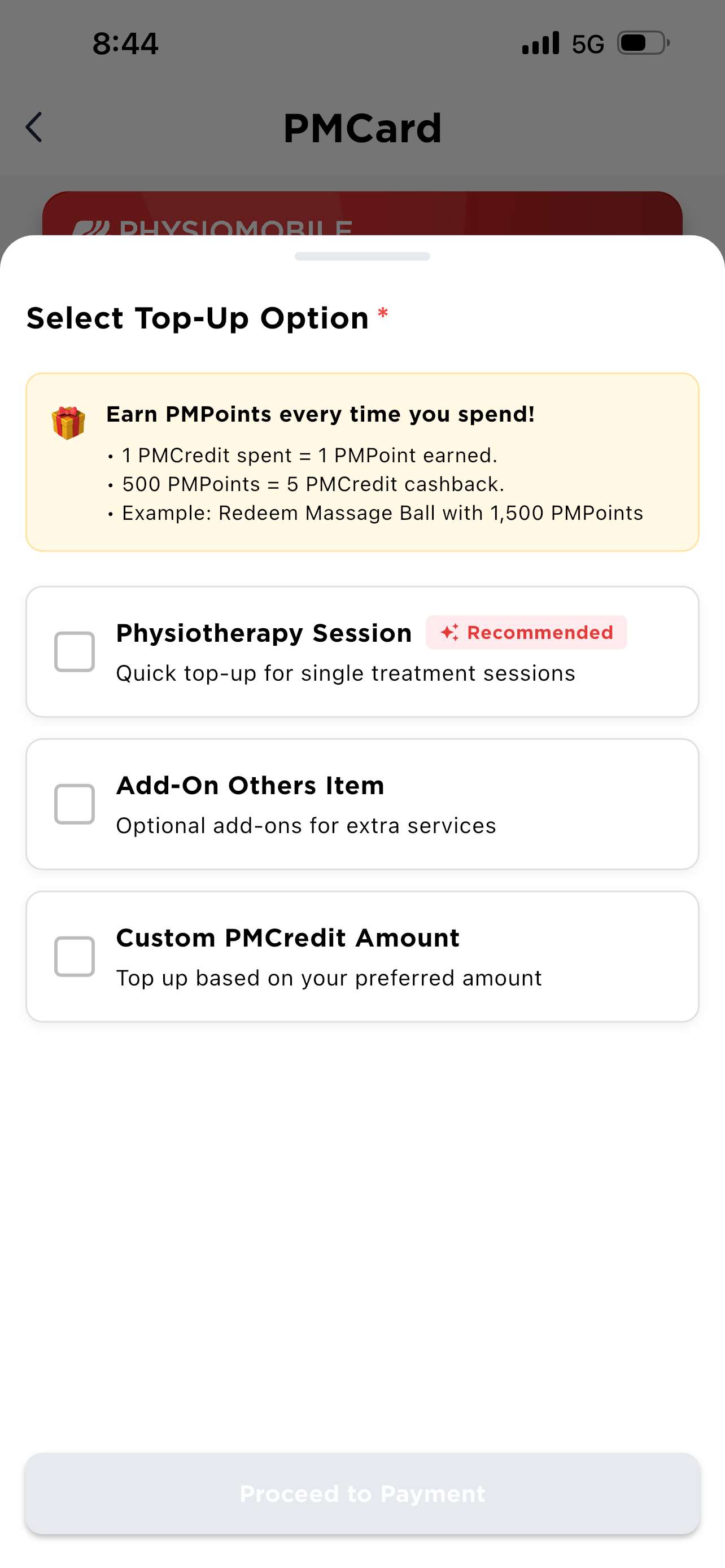
Top-Up optionsPilihan Top-Upcan tick more than oneboleh tanda lebih dari satu
- Physiotherapy SessionPhysiotherapy Session RecommendedDisyorkan — quick top-up matched to a single session, e.g. Treatment Single Session (1 Hour) – Center = RM120 / 120 PMCredit.top-up pantas untuk satu sesi, cth. Treatment Single Session (1 Hour) – Center = RM120 / 120 PMCredit.
- Add-On Others Item — optional add-ons for extra services.add-on untuk perkhidmatan tambahan.
- Custom PMCredit Amount — enter any amount, e.g. RM100 = 100 PMCredit.masukkan sebarang jumlah, cth. RM100 = 100 PMCredit.
Tap Proceed to Payment once an option is selected.
Tekan Proceed to Payment selepas pilihan dibuat.
Payment (CHIP E-Commerce Gateway)Pembayaran (CHIP E-Commerce Gateway)
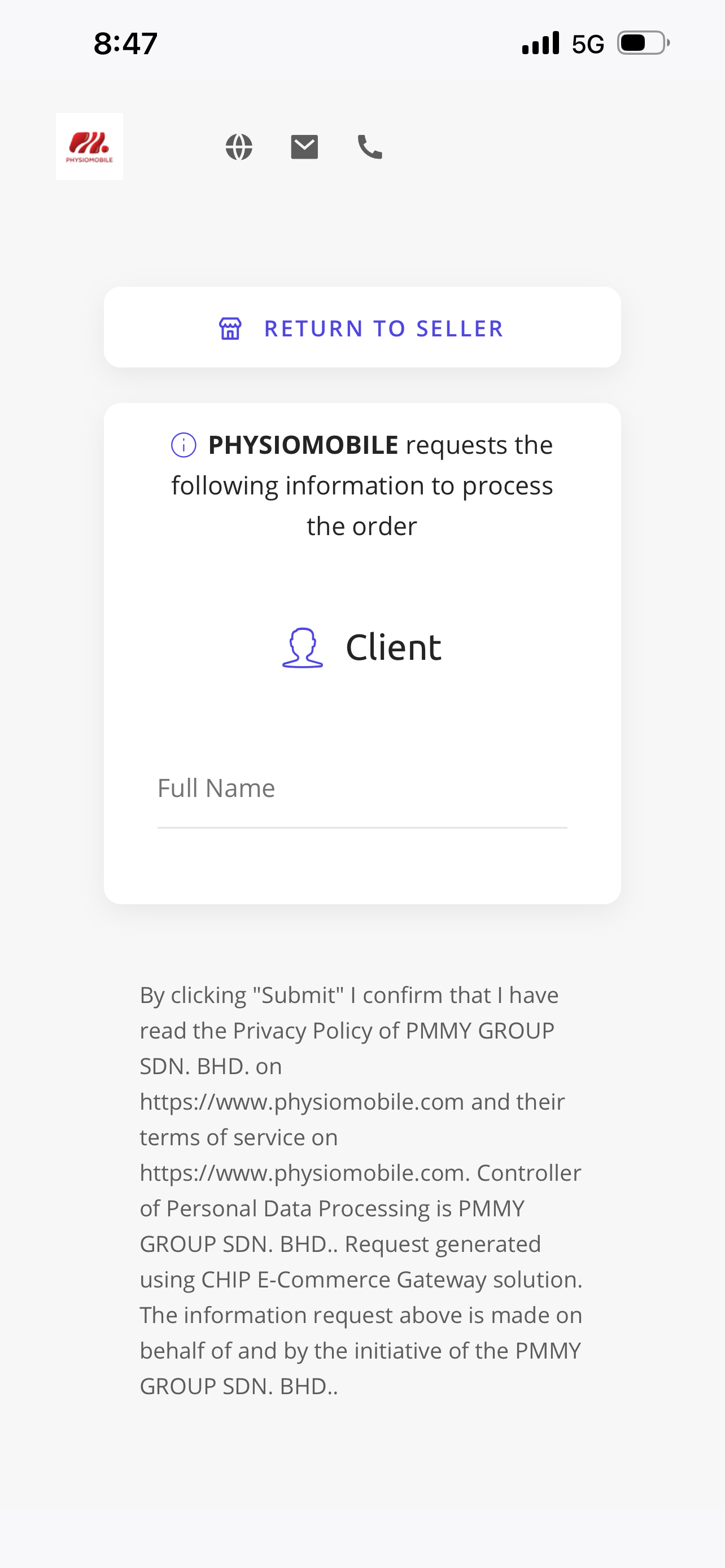
- Confirm client details — fill Full Name, then tap Submit to confirm the Privacy Policy & Terms of Service.Sahkan maklumat client — isi Full Name, tekan Submit untuk sahkan Dasar Privasi & Terma Perkhidmatan.
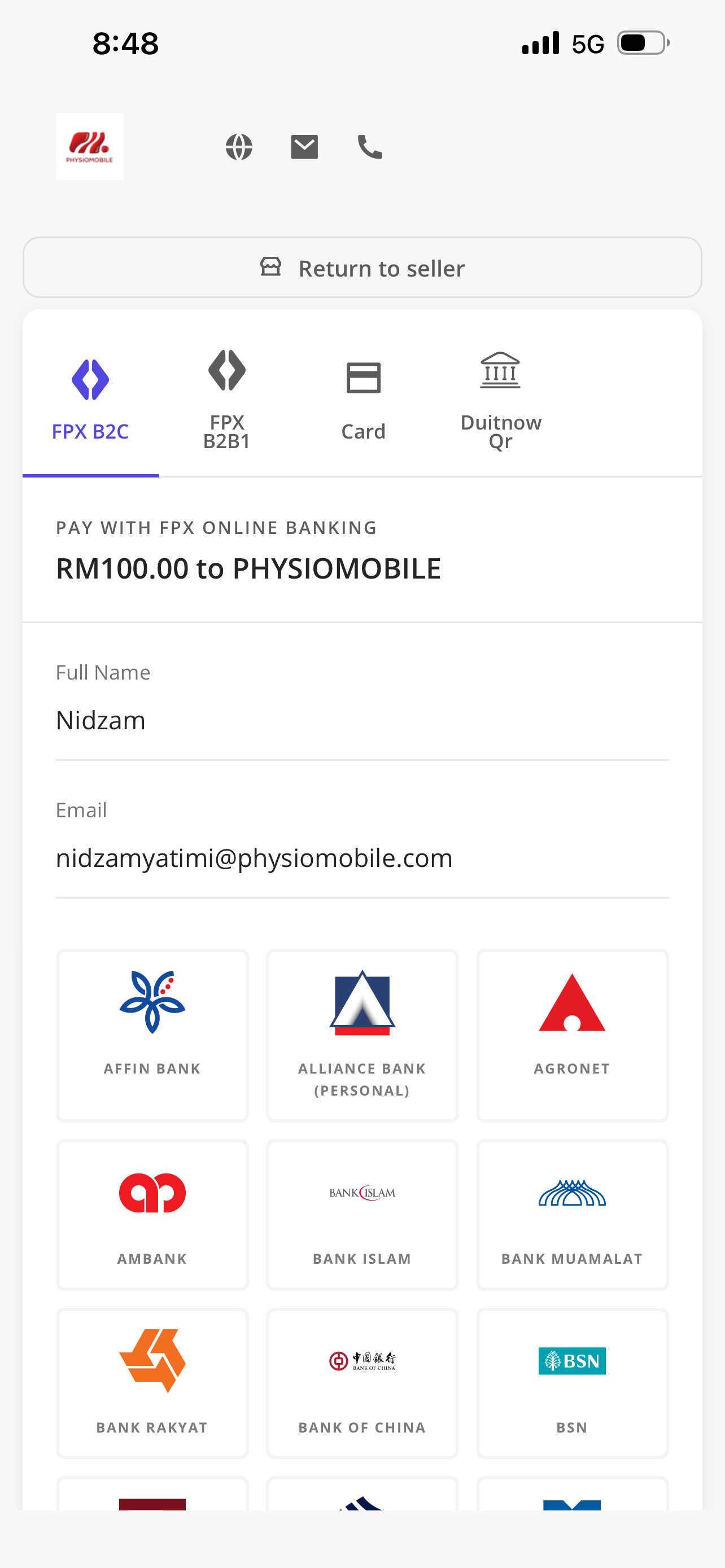
- Choose a payment method: FPX B2C, FPX B2B1, Card, or DuitNow QR.Pilih kaedah pembayaran: FPX B2C, FPX B2B1, Card, atau DuitNow QR.
- Fill in Full Name & Email, then (for FPX) pick your bank from the list and confirm.Isi Full Name & Email, kemudian (untuk FPX) pilih bank dan sahkan.
My Package — Buying & Checkout
My Package — Beli & Checkout
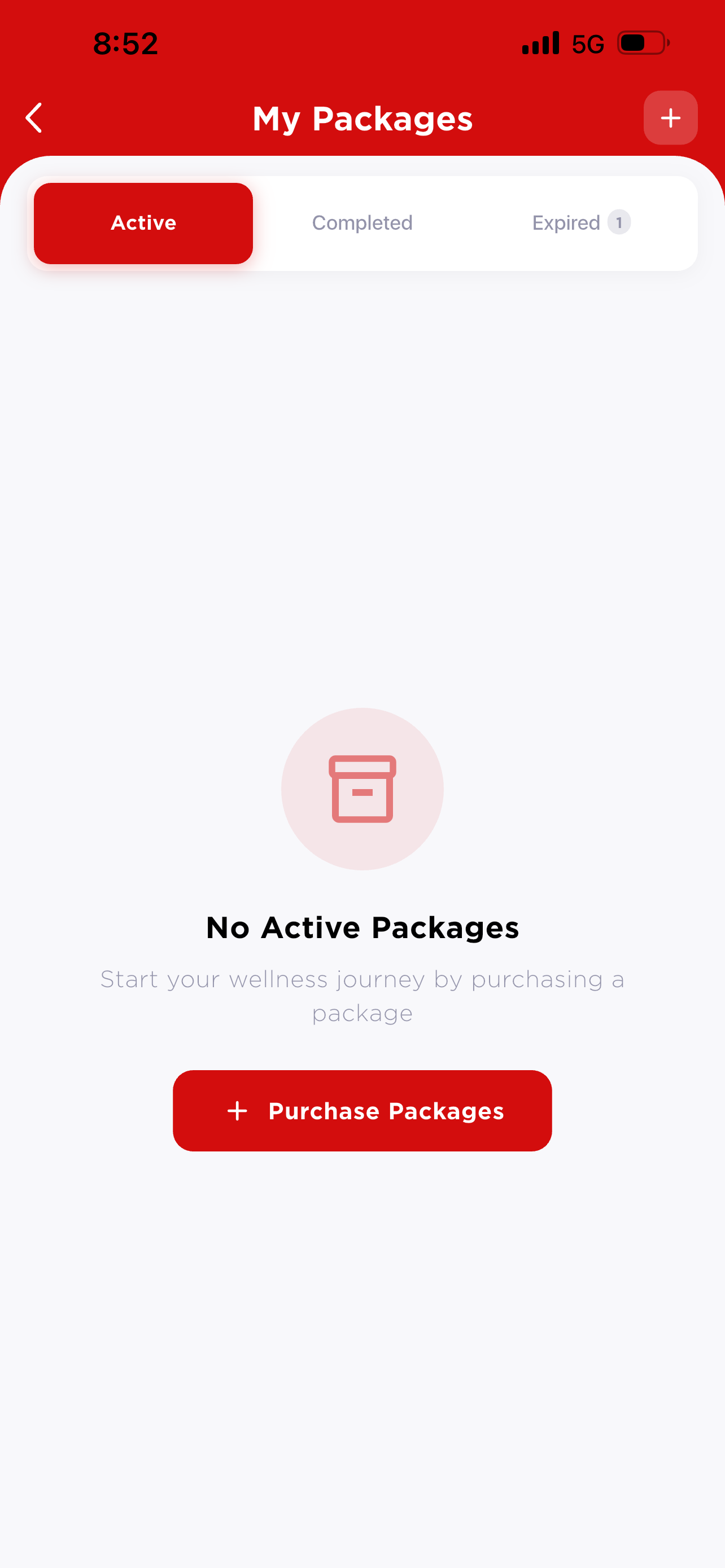
Tap My Package on Home to see your packages or buy a new one.
Tekan My Package di Home untuk lihat pakej sedia ada atau beli pakej baharu.
My Packages tabsTab My Packages
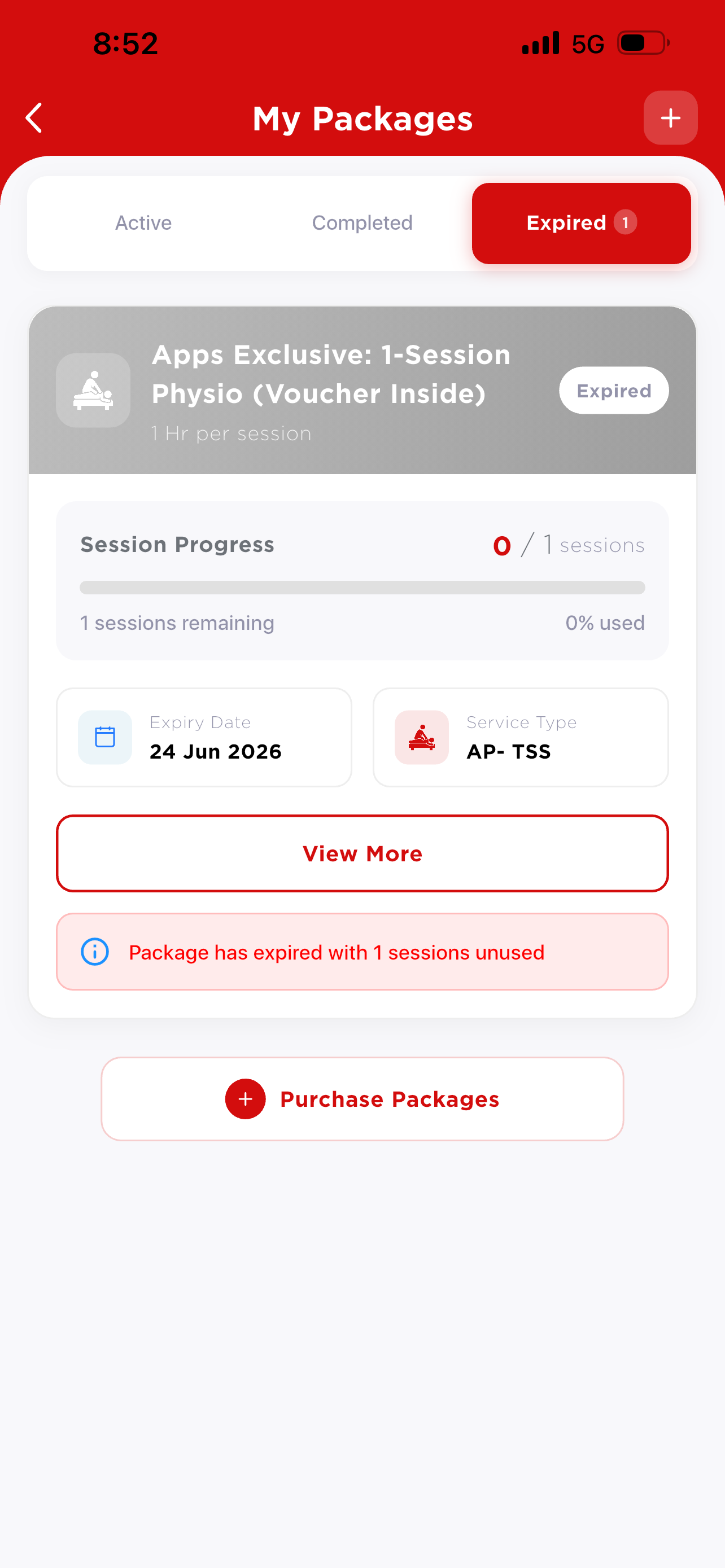
Packages are grouped as Active Completed Expired. Each card shows a Session Progress bar, Expiry Date, and Service Type; tap View More for full details.
Pakej disusun mengikut Active Completed Expired. Setiap kad memaparkan bar Session Progress, Expiry Date, dan Service Type; tekan View More untuk butiran penuh.
Browsing & buying a packageMelihat & membeli pakej
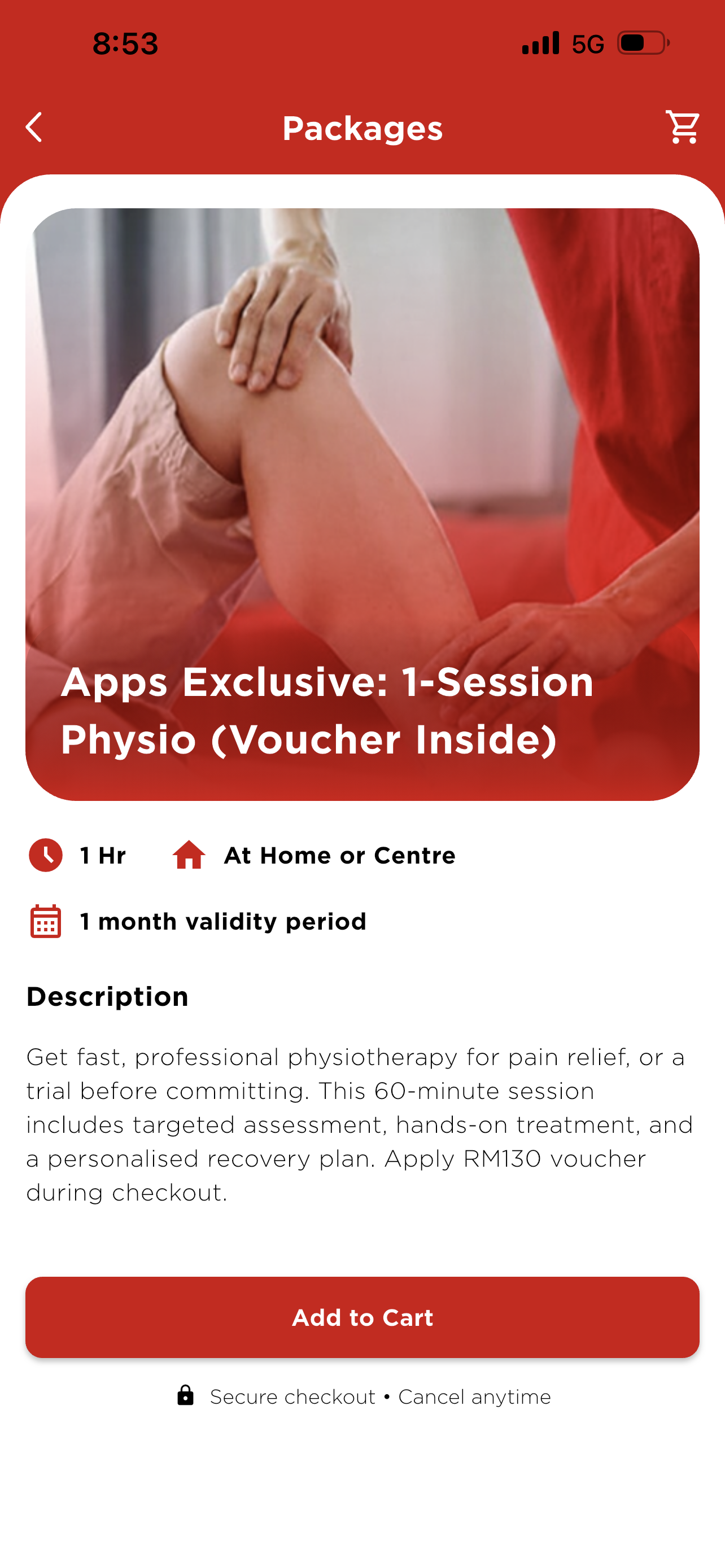
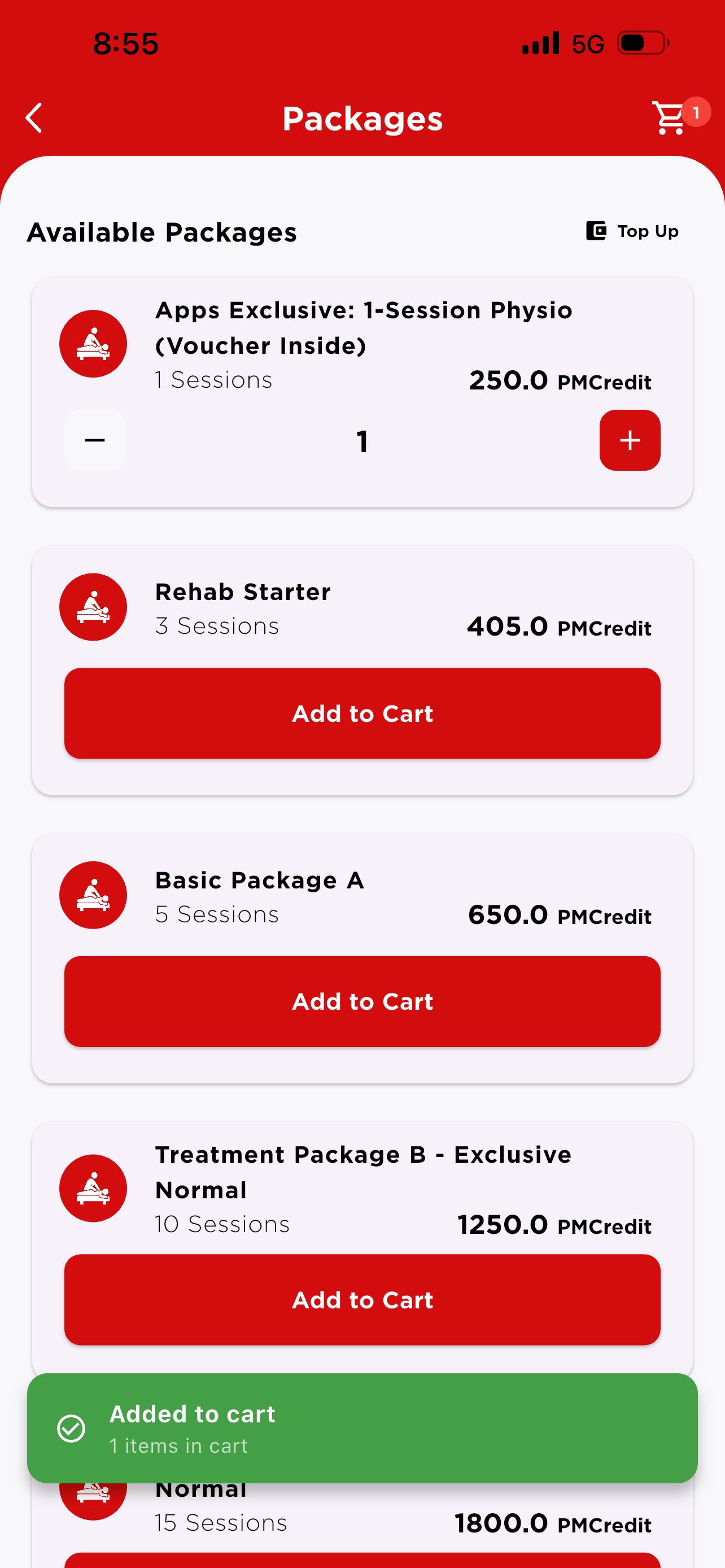
Tap Purchase Packages (or the + icon). Each package card opens a detail page with an image, duration, treatment location, validity period, and full description before you tap Add to Cart.
Tekan Purchase Packages (atau ikon +). Setiap kad pakej membuka halaman butiran dengan imej, tempoh, lokasi rawatan, tempoh sah, dan penerangan penuh sebelum tekan Add to Cart.
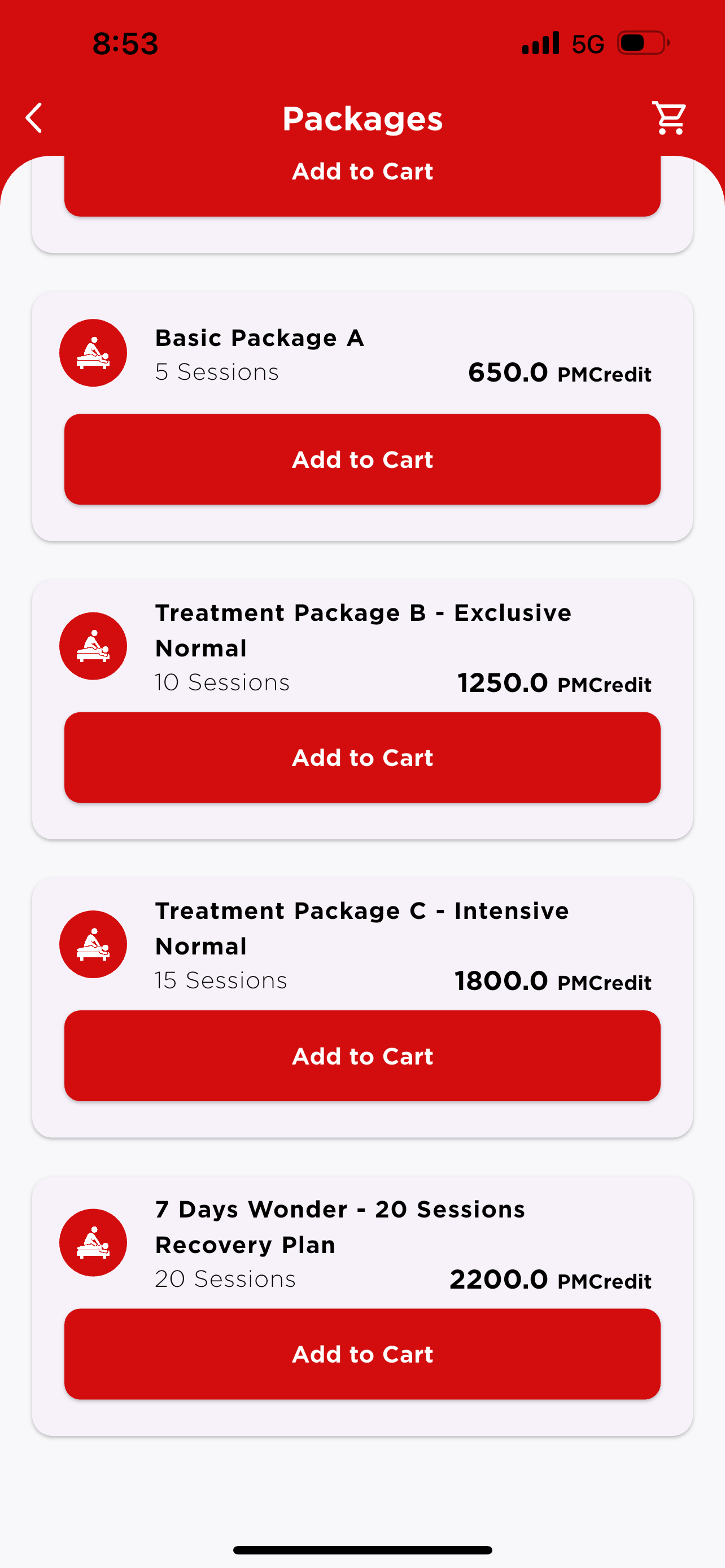
| PackagePakej | SessionsSesi | PriceHarga | ValidityTempoh Sah |
|---|---|---|---|
| Apps Exclusive: 1-Session Physio (RM130 voucher inside)Apps Exclusive: 1-Session Physio (baucar RM130 di dalam) | 1 | 250 PMCredit | 1 month1 bulan |
| Rehab Starter | 3 | 405 PMCredit | 3 months3 bulan |
| Basic Package A | 5 | 650 PMCredit | 3 months3 bulan |
| Treatment Package B — Exclusive NormalTreatment Package B — Exclusive Normal | 10 | 1,250 PMCredit | 6 months6 bulan |
| Treatment Package C — Intensive NormalTreatment Package C — Intensive Normal | 15 | 1,800 PMCredit | 6 months6 bulan |
| 7 Days Wonder — 20-Session Recovery Plan (limited campaign)7 Days Wonder — Pelan Pemulihan 20 Sesi (kempen terhad) | 20 | 2,200 PMCredit | 1 year1 tahun |
All packages are 1-hour sessions, usable at a centre or as a housecall.
Semua pakej ialah sesi 1 jam, boleh diguna di pusat atau housecall.
Cart & CheckoutCart & Checkout
- Add to Cart — a green “Added to cart” toast appears; the cart icon shows the item count. Adjust quantity or Clear from the Cart screen.Add to Cart — notis hijau “Added to cart” muncul; ikon troli memaparkan bilangan item. Laras kuantiti atau Clear di skrin Cart.
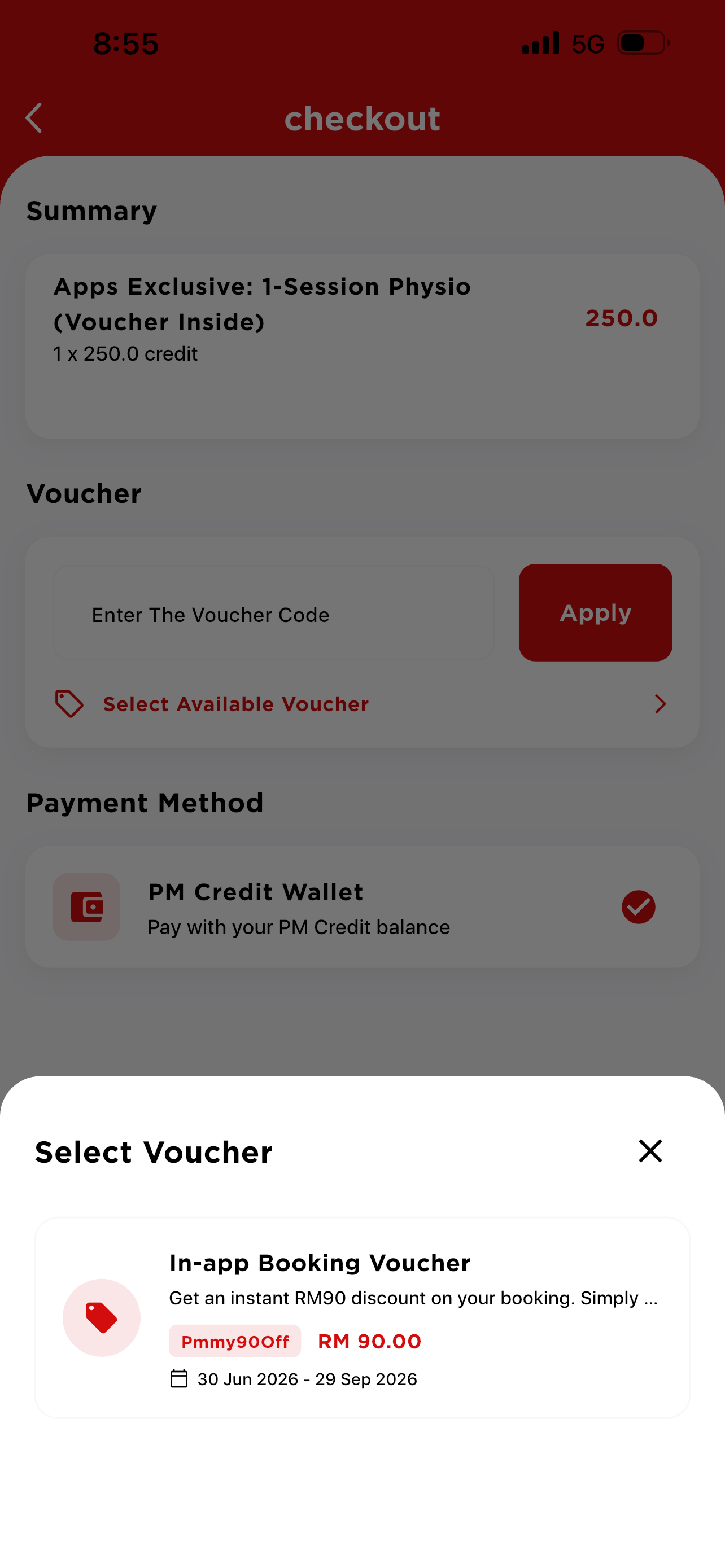
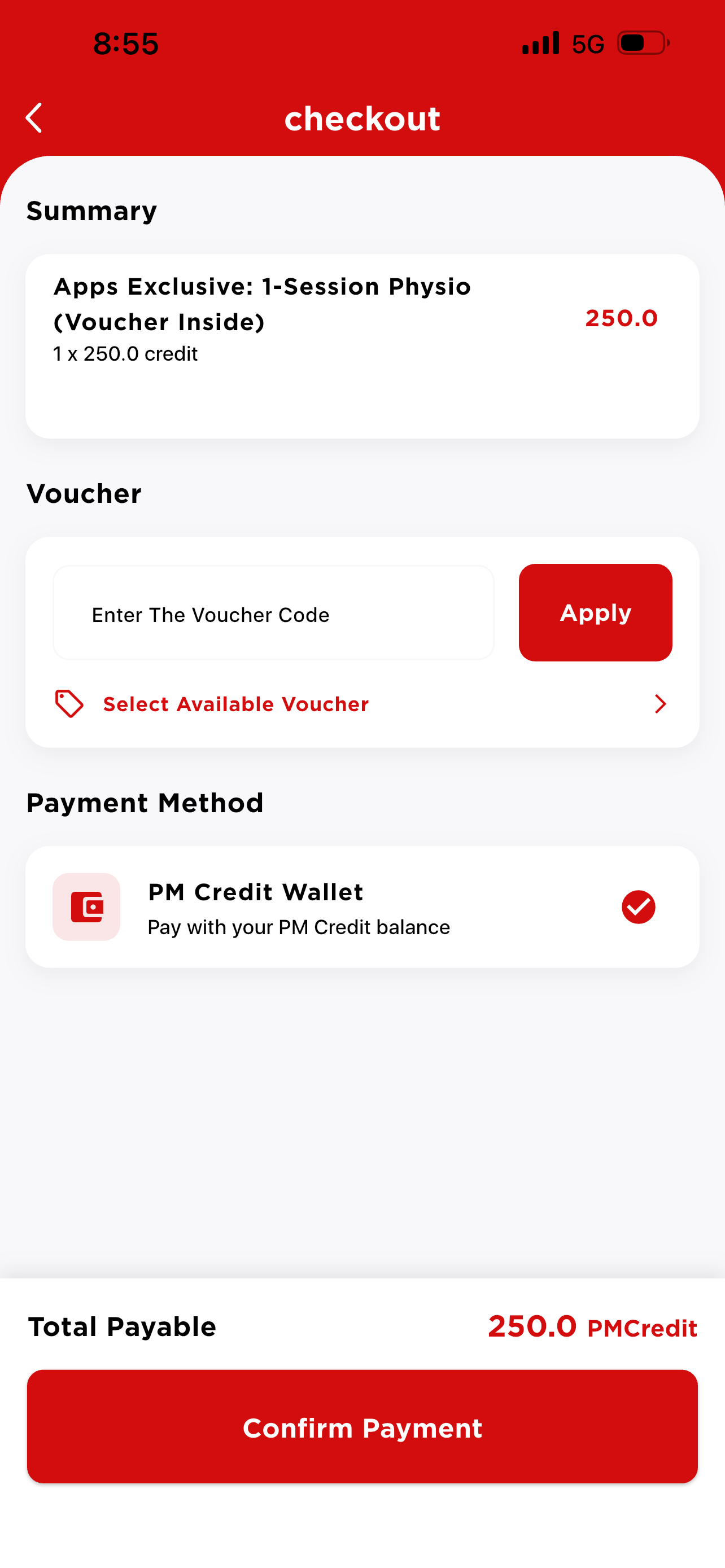
- Tap Proceed to Checkout. Review the Summary, then apply a Voucher — type a code and tap Apply, or tap Select Available Voucher to pick from a list (e.g. Pmmy90Off gives RM90 off).Tekan Proceed to Checkout. Semak Summary, kemudian guna Voucher — taip kod dan tekan Apply, atau tekan Select Available Voucher untuk pilih dari senarai (cth. Pmmy90Off beri diskaun RM90).
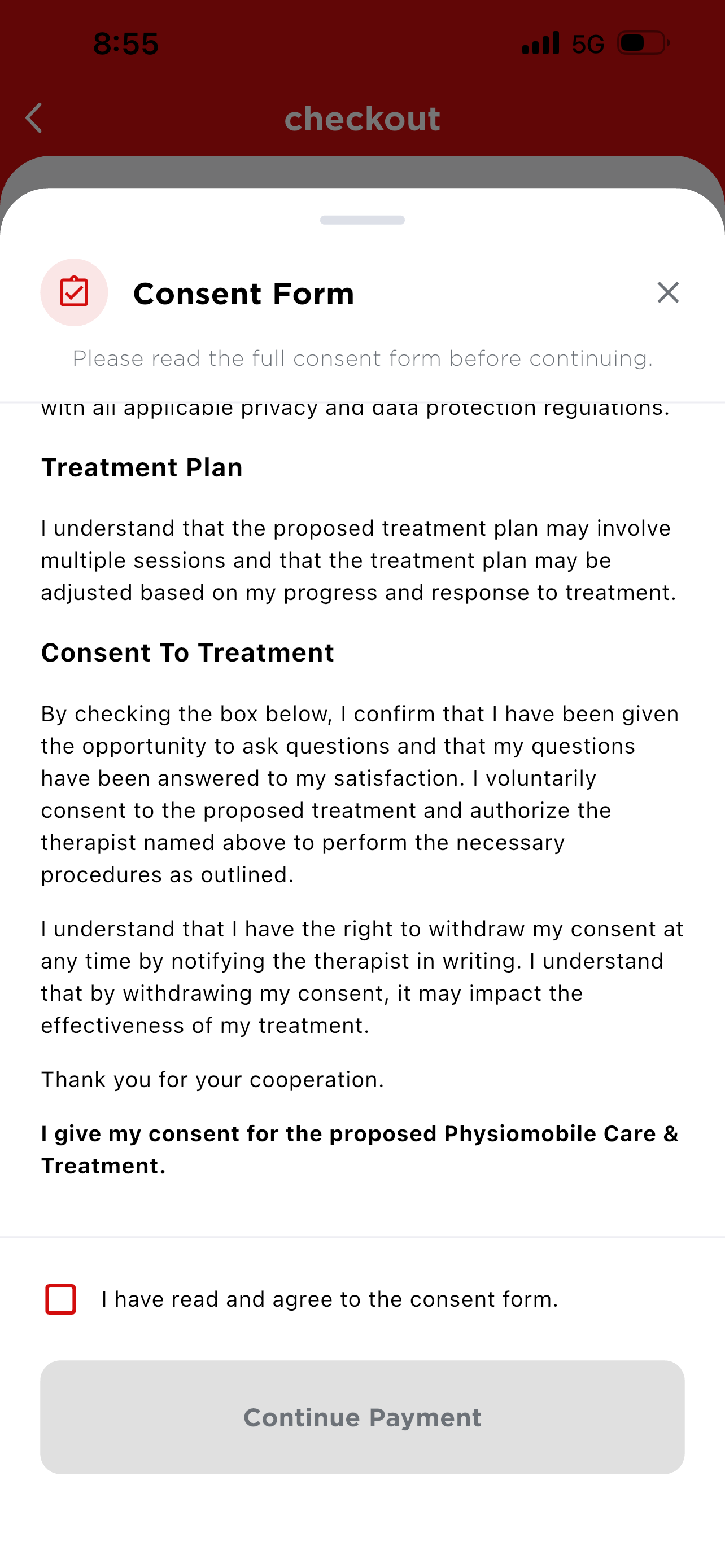
- Payment Method is PM Credit Wallet. Read and tick “I have read and agree to the consent form” (Treatment Plan & Consent to Treatment) — Continue Payment only unlocks after this is ticked.Payment Method ialah PM Credit Wallet. Baca dan tanda “I have read and agree to the consent form” (Treatment Plan & Consent to Treatment) — Continue Payment hanya aktif selepas ditanda.
- Tap Confirm Payment. PMCredit is deducted and the package appears under the Active tab, ready to book.Tekan Confirm Payment. PMCredit ditolak dan pakej muncul di tab Active, sedia untuk ditempah.
My GL — Panel Patients
My GL — Pesakit Panel
For patients whose treatment is covered by a panel (PERKESO, PM CARE, MEDKAD, HealthConnect, Zakat, MediExpress, ASP Medical Group, CompuMed, HealthMethric, and more). GL stands for Guarantee Letter — proof of your coverage.
Untuk pesakit yang rawatannya ditanggung panel (PERKESO, PM CARE, MEDKAD, HealthConnect, Zakat, MediExpress, ASP Medical Group, CompuMed, HealthMethric, dan lain-lain). GL bermaksud Guarantee Letter — bukti liputan anda.
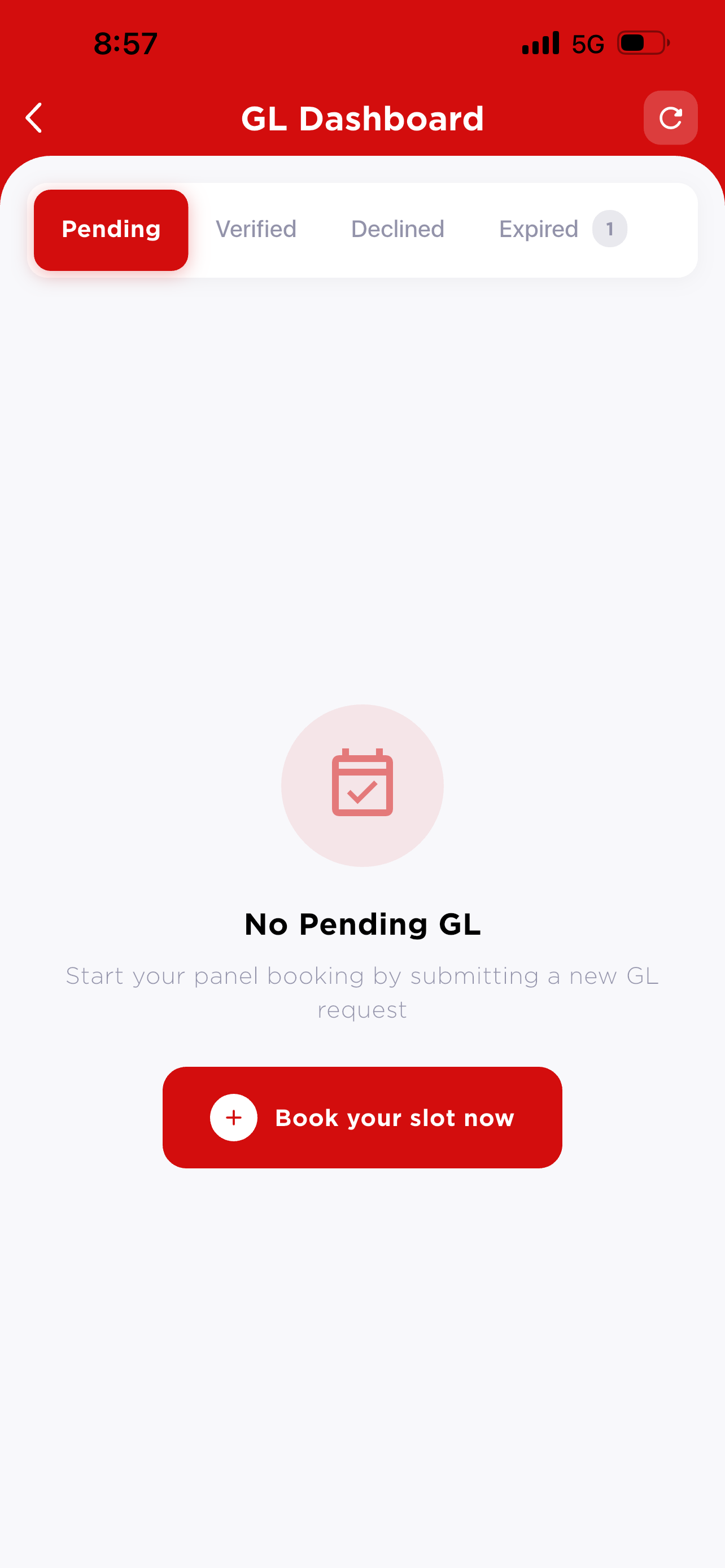
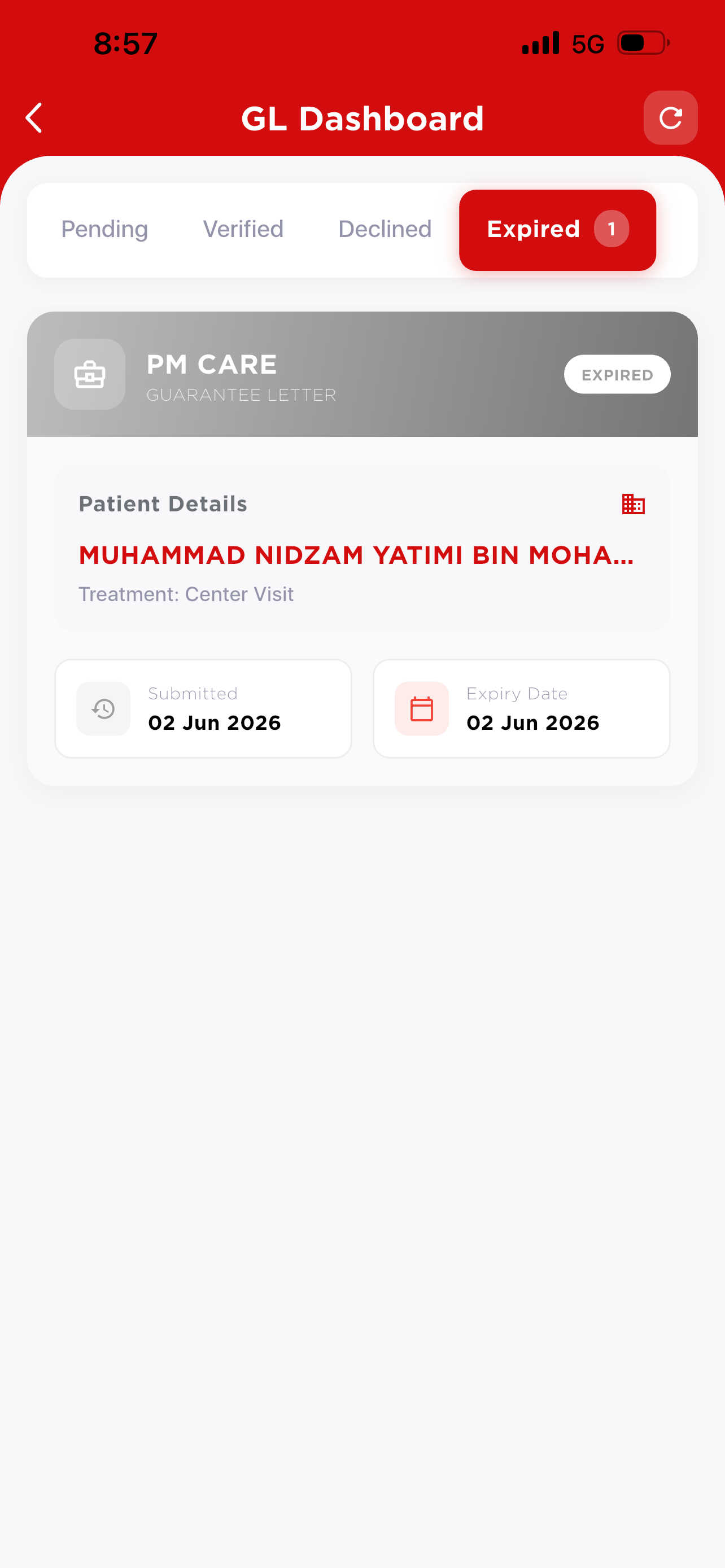
GL DashboardGL Dashboard
- Pending submitted, awaiting admin review. If none yet, tap “Book your slot now” to start a new request.dihantar, menunggu semakan admin. Jika belum ada, tekan “Book your slot now” untuk mula permohonan baharu.
- Verified approved — booking opens from here.disahkan — tempahan dibuka dari sini.
- Declined rejected — you'll need to re-apply.ditolak — perlu mohon semula.
- Expired the card shows your provider, Patient Details, Submitted date and Expiry Date — you'll need a new GL.kad memaparkan penyedia, Patient Details, tarikh Submitted dan Expiry Date — perlu GL baharu.
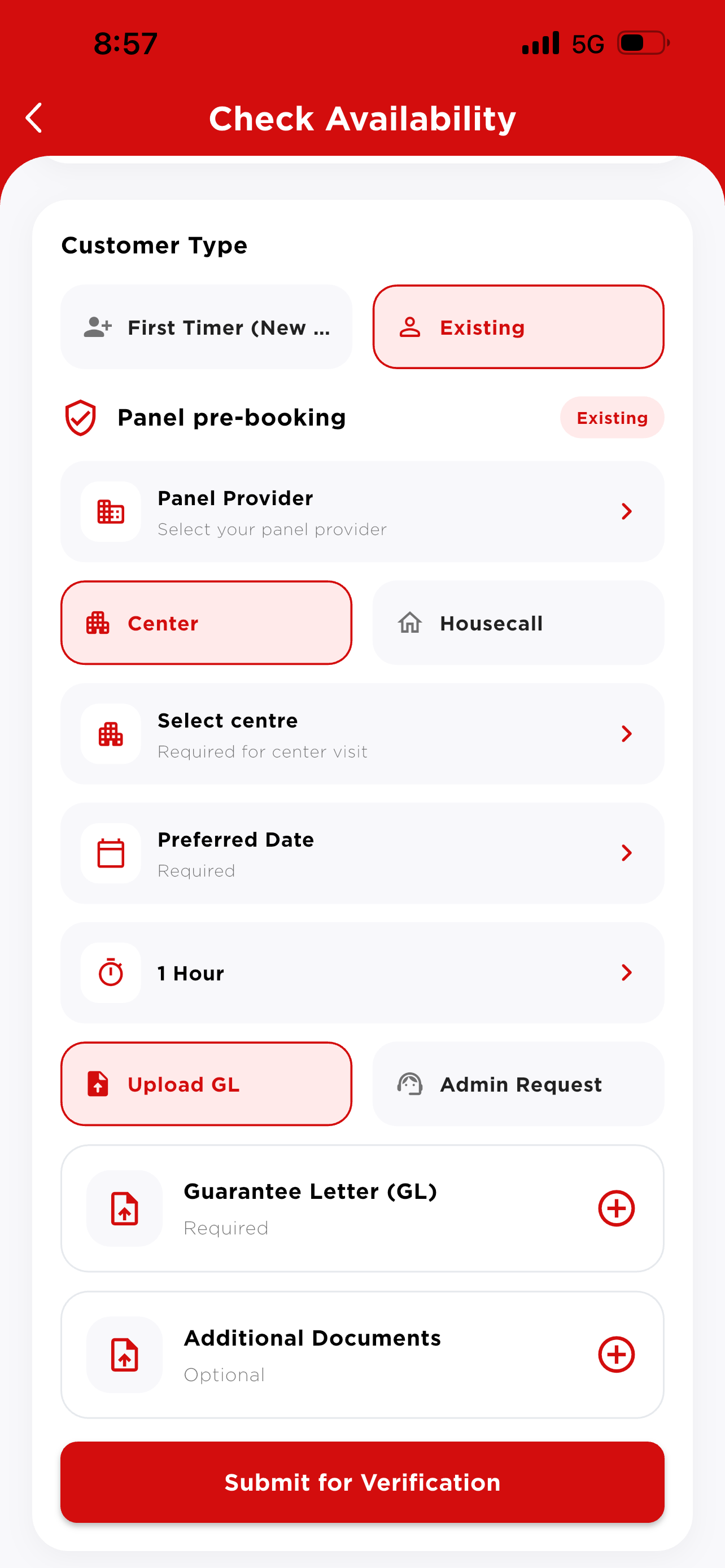
Panel pre-booking formBorang pra-tempahan panel
From Check Availability → Booking, choose Panel and your patient, then fill in:
Dari Check Availability → Booking, pilih Panel dan pesakit, kemudian isi:
- Customer Type — First Timer (New) or Existing.First Timer (New) atau Existing.
- Panel Provider — pick your panel from the list.pilih penyedia panel anda.
- Location — Center (choose a branch) or Housecall.Location — Center (pilih cawangan) atau Housecall.
- Preferred Date and treatmentdan Duration (e.g. 1 Hourcth. 1 Hour).
- GL method — Upload GL (attach it yourself) or Admin Request (our admin requests it on your behalf).Kaedah GL — Upload GL (lampir sendiri) atau Admin Request (admin uruskan bagi pihak anda).
- Guarantee Letter upload is required; Additional Documents is optional.Guarantee Letter wajib dimuat naik; Additional Documents pilihan.
Tap Submit for Verification.
Tekan Submit for Verification.
Book Your Slot Now
Book Your Slot Now
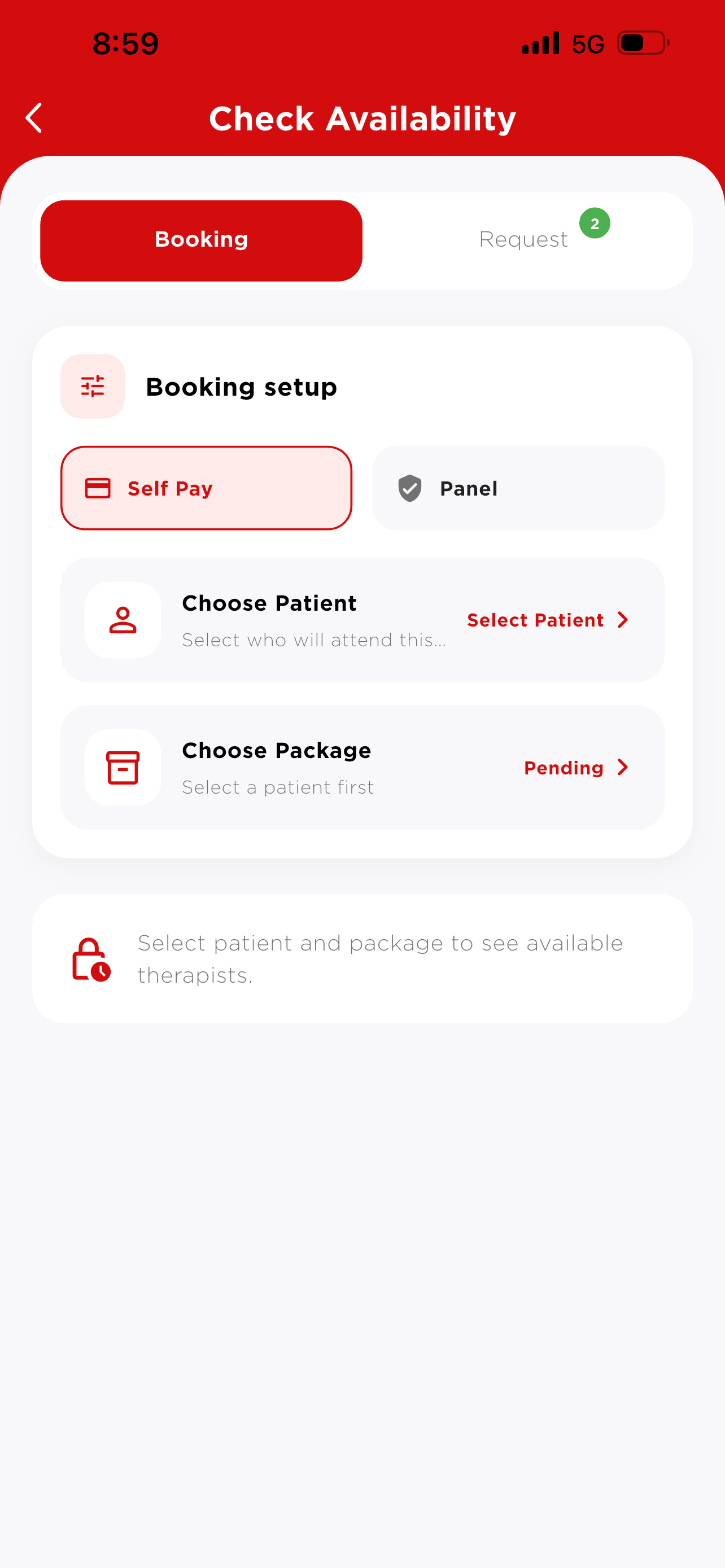
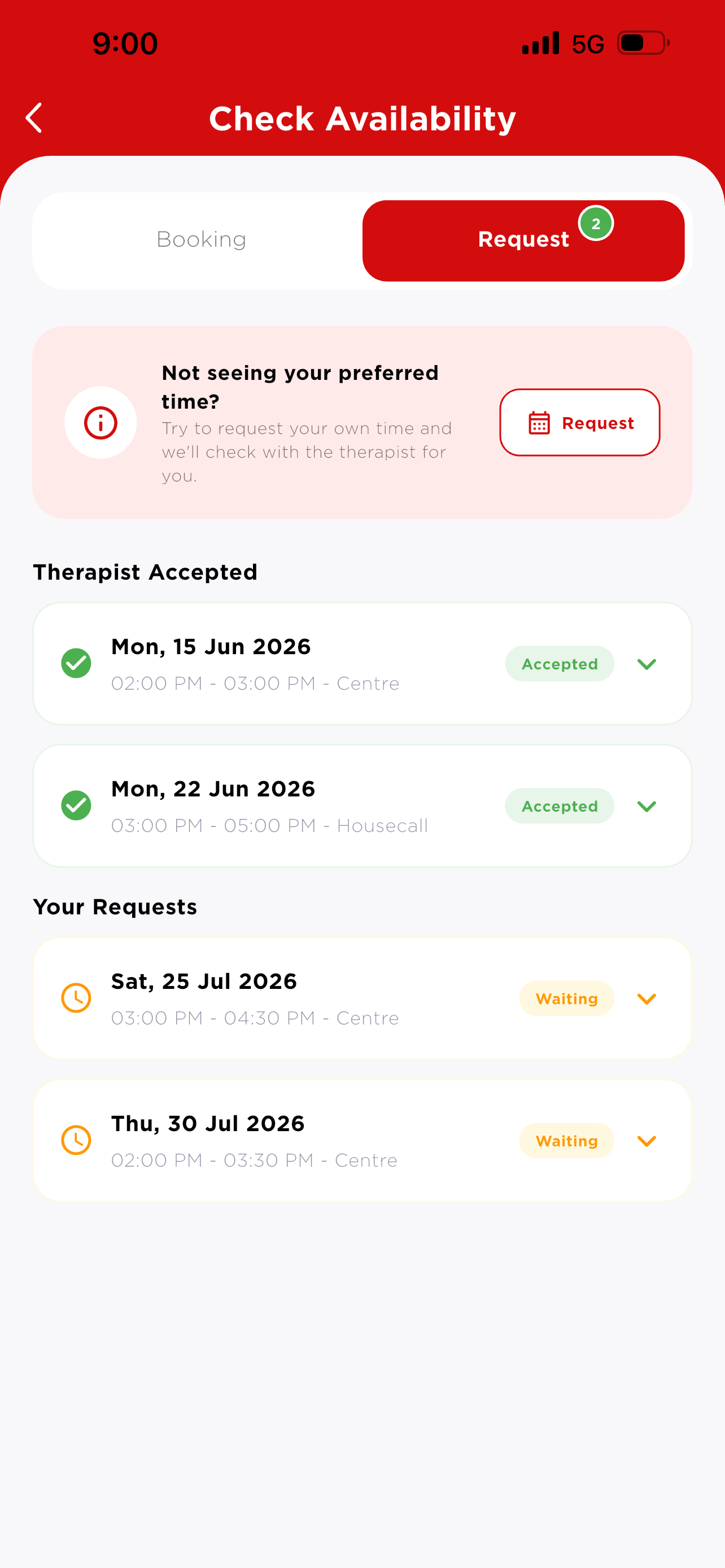
The main door into booking a session. The Check Availability screen has two tabs: Booking (book directly) and Request (ask for a custom time).
Pintu masuk utama untuk menempah sesi. Skrin Check Availability mempunyai dua tab: Booking (tempah terus) dan Request (minta waktu tersuai).
Booking tabTab Booking
Choose Self Pay (uses your PMCredit package) or Panel (needs a Verified GL — see Section 4). For Self Pay: choose the patient, then an active package (tap Buy if you have none), then a date and Center / Housecall.
Pilih Self Pay (guna pakej PMCredit) atau Panel (perlu GL Verified — lihat Seksyen 4). Untuk Self Pay: pilih pesakit, kemudian pakej aktif (tekan Buy jika tiada), kemudian tarikh dan Center / Housecall.
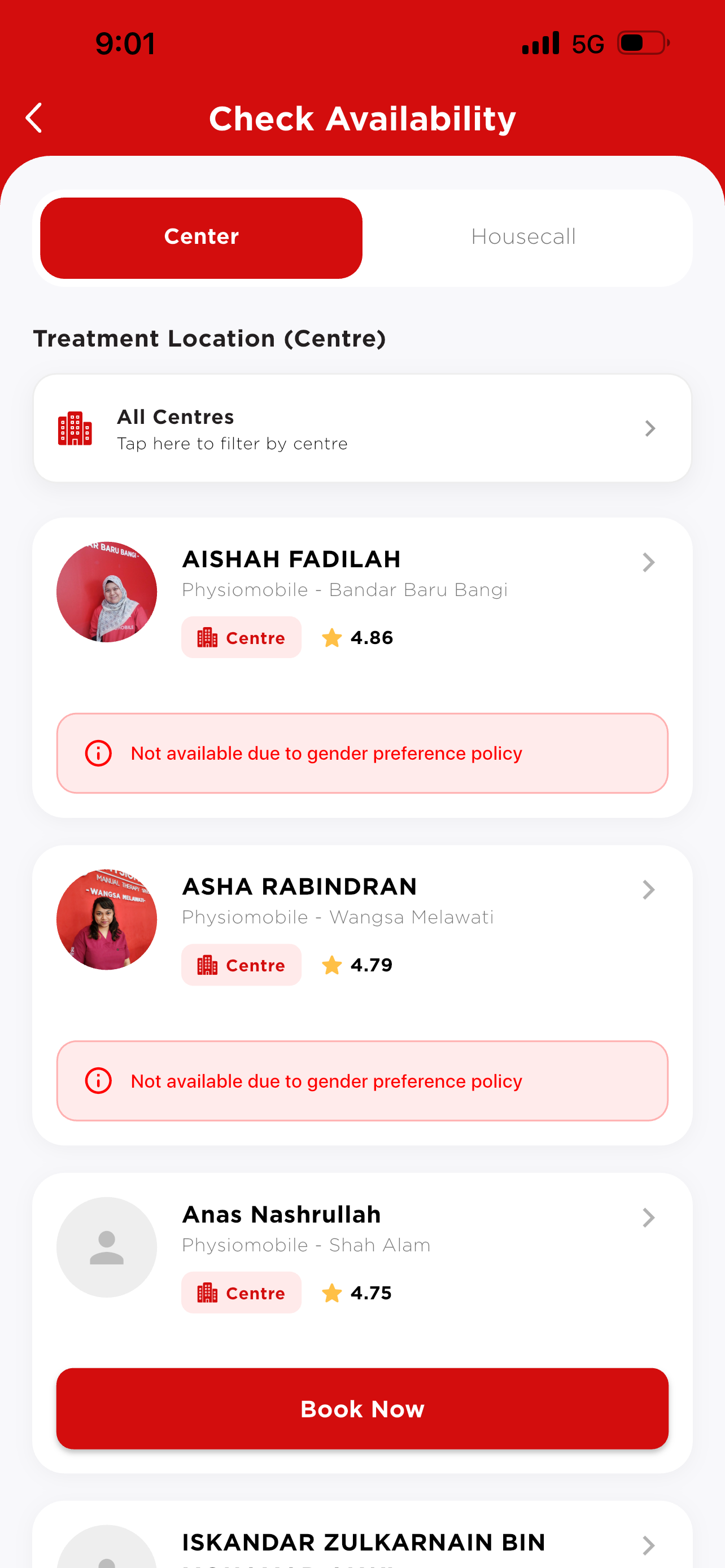
Each therapist card shows name, centre, and star rating — tap Book Now. Use All Centres to filter by branch.
Setiap kad terapis memaparkan nama, cawangan, dan penarafan bintang — tekan Book Now. Guna All Centres untuk tapis mengikut cawangan.
Request tab — when no time fitsTab Request — bila tiada waktu sesuai
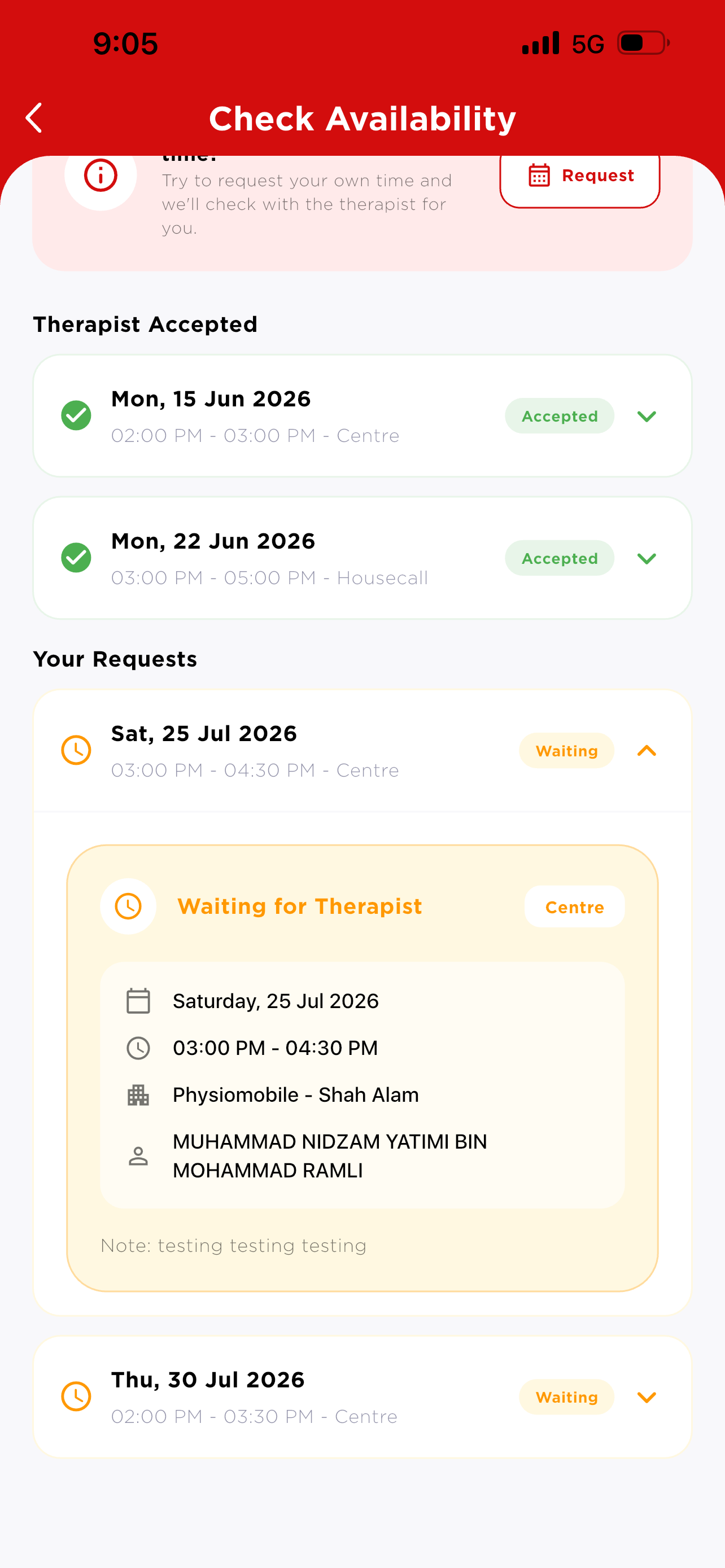
Requests are shown in two lists:
Permintaan dipaparkan dalam dua senarai:
- Accepted Therapist AcceptedTherapist Accepted — slot is ready, tap it to continue booking.slot sedia, tekan untuk teruskan tempahan.
- Waiting Your RequestsYour Requests — still awaiting a reply; tap the chevron to expand full details (date, time, centre, requester, your note).masih menunggu jawapan; tekan chevron untuk lihat butiran penuh (tarikh, masa, cawangan, penempah, nota anda).
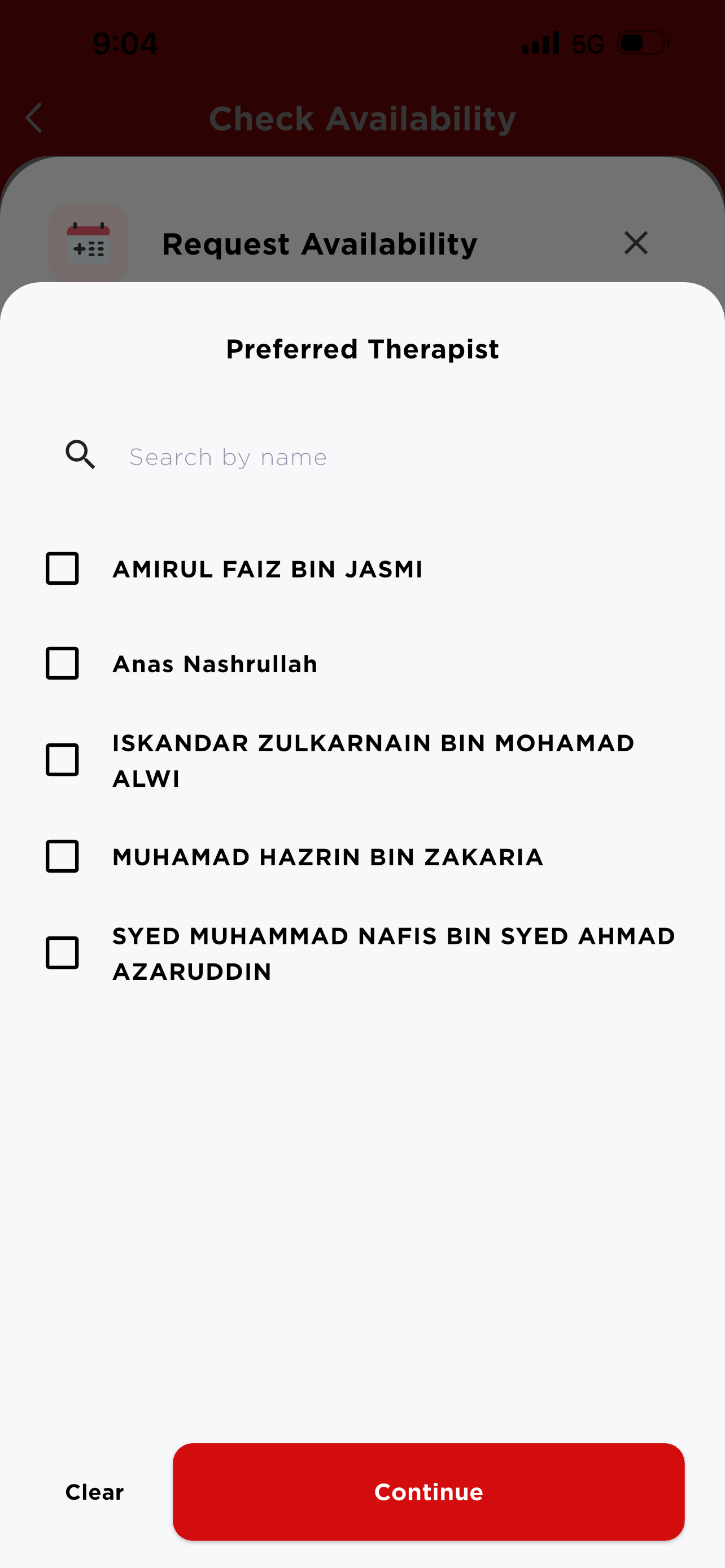
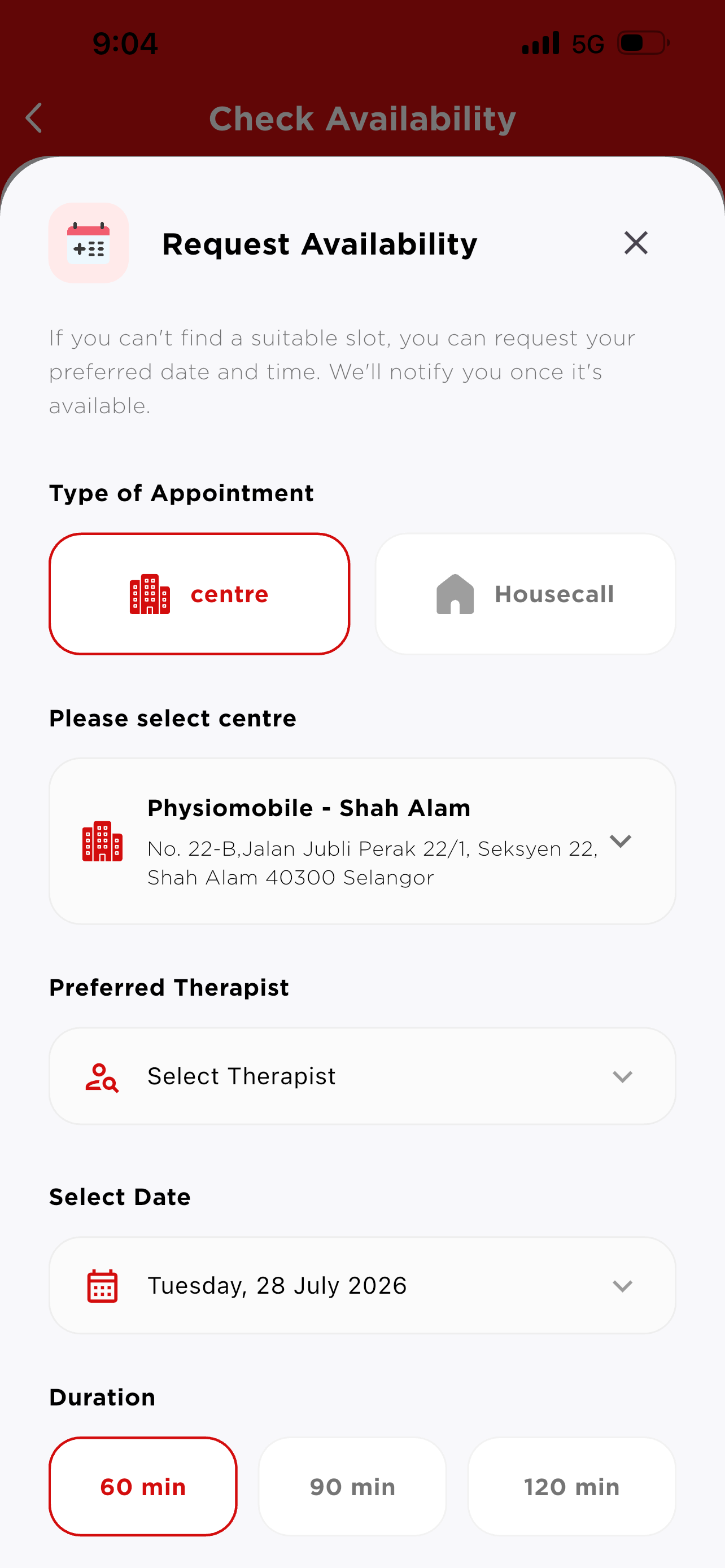
Tap Request to open the Request Availability form:
Tekan Request untuk buka borang Request Availability:
- Type of Appointment — Centre (then select a centre) or Housecall.Type of Appointment — Centre (pilih cawangan) atau Housecall.
- Preferred Therapist — search and tick one or more names, or Clear.Preferred Therapist — cari dan tanda satu atau lebih nama, atau Clear.
- Select Date, Duration (60 / 90 / 120 min), and Select Time.Select Date, Duration (60 / 90 / 120 min), dan Select Time.
- Patient Information — Myself or Dependent.Patient Information — Myself atau Dependent.
- Additional Info (optional, up to 150 characters), then tap Submit Request.Additional Info (pilihan, sehingga 150 aksara), kemudian tekan Submit Request.
Choose Patient & Dependants
Pilih Pesakit & Tanggungan
Every booking or GL request starts by picking who the session is for. Your own profile appears under Myself; family members you've added appear under Dependants.
Setiap tempahan atau permohonan GL bermula dengan memilih untuk siapa sesi itu. Profil anda dipaparkan di bawah Myself; ahli keluarga yang ditambah dipaparkan di bawah Dependants.
- Use Search Patient to find someone quickly.Guna Search Patient untuk cari pesakit dengan pantas.
- Tap + Add Dependant to register a new family member (name, NRIC, date of birth, gender, relationship, contact & address).Tekan + Add Dependant untuk daftar ahli keluarga baharu (nama, NRIC, tarikh lahir, jantina, hubungan, hubungan & alamat).
- Tick the patient, then tap Continue.Tanda pesakit, kemudian tekan Continue.
Appointments & Navigation
Janji Temu & Navigasi
Once a booking is submitted, it appears under Appointments on Home in the Pending / Active / Past tabs (see Section 1).
Selepas tempahan dihantar, ia dipaparkan di bawah Appointments di Home dalam tab Pending / Active / Past (lihat Seksyen 1).
Need help?Perlukan bantuan?
Tap Help on Home to reach Customer Support directly through chat, or submit a request describing what you need (e.g. a specific therapist gender, date, or time). Our CS team receives it and follows up with you.
Tekan Help di Home untuk terus hubungi Customer Support melalui chat, atau hantar permintaan menerangkan keperluan anda (cth. jantina terapis, tarikh, atau masa tertentu). Pasukan CS kami akan menerima dan menghubungi anda.
↑ Back to top↑ Kembali ke atasMore to Know
Perkara Lain
Quick reference for features that haven't changed recently.
Rujukan pantas untuk fungsi yang tidak berubah baru-baru ini.
PMPoints
Earned on package purchases & referrals. 1 Point = RM0.01, minimum 500 points to redeem.
Diperoleh dari pembelian pakej & rujukan. 1 Point = RM0.01, minimum 500 mata untuk ditebus.
AddressesAlamat
Save housecall addresses via Bookmark Address; set one as default and add access notes.
Simpan alamat housecall melalui Bookmark Address; tetapkan default dan tambah nota akses.
NotificationsNotifikasi
Booking alerts and Announcements (promos, news, updates) — the bell/Inbox badge shows unread count.
Amaran tempahan dan Announcements (promosi, berita, kemas kini) — lencana bell/Inbox memaparkan bilangan belum dibaca.
Profile & SettingsProfil & Tetapan
Account info, dependants, time slips, medical records, Referral ID, language, and privacy settings.
Maklumat akaun, tanggungan, slip masa, rekod perubatan, Referral ID, bahasa, dan tetapan privasi.